
Check out jobs near you on the go.
Clients can now create, edit, close and duplicate jobs via the iOS app. Clients can even easily create a booking directly from one of their jobs by selecting an interested SW, which will pre-fill all relevant information for the booking automatically.
Workers: View and respond to jobs that people post near you. See a job you like? Simply click “I’m interested” and message the job poster to learn more and share why you could be a great fit for them.
Bookings
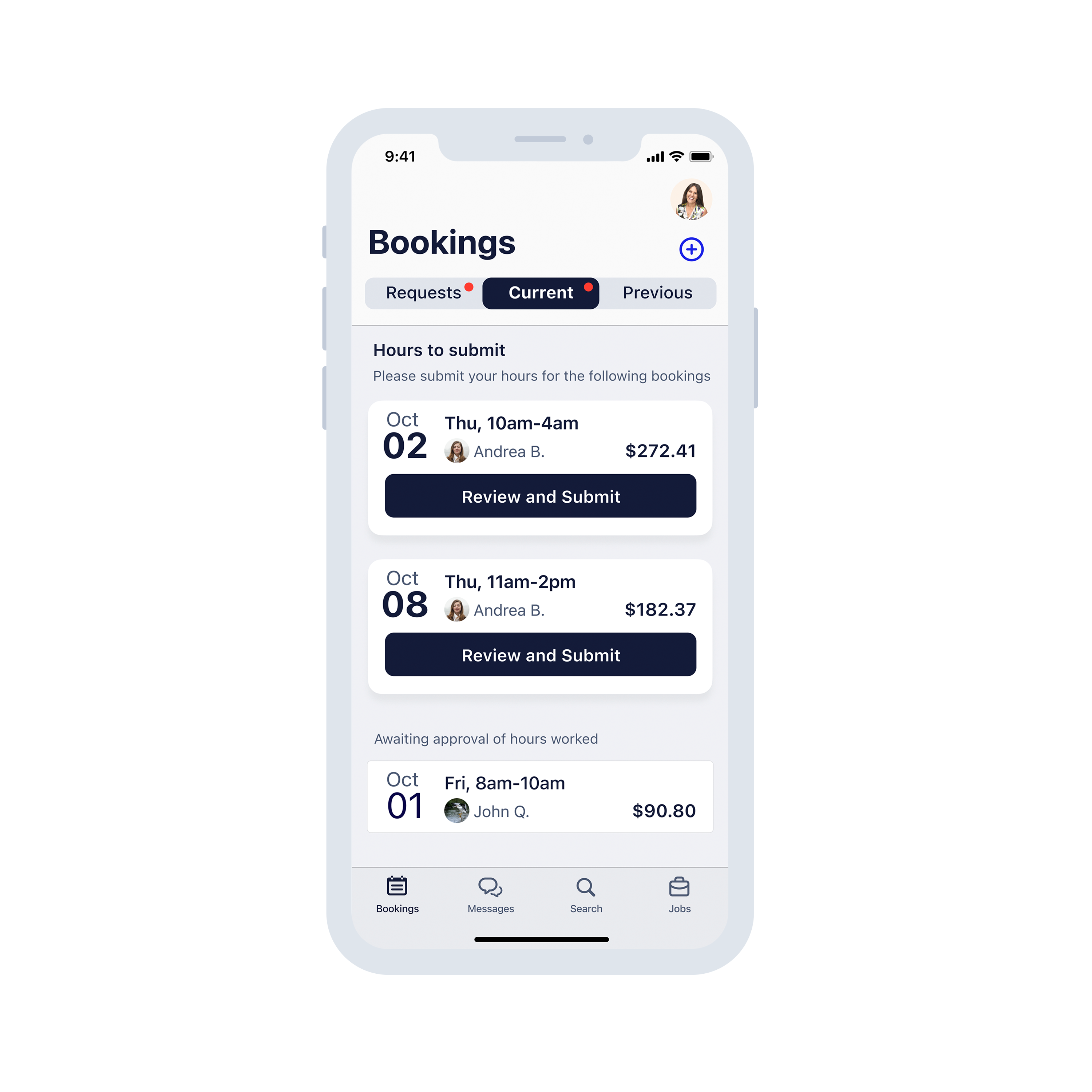
Manage bookings from start to finish.
You can create a booking a few ways, via:
- A message (tap the 'book' icon on the top right of the conversation)
- Someone’s profile,
- The create booking button on the bookings screen (located under your picture) or,
- My Team (tap on your account on the top right).
To cancel a booking or add it to your calendar, tap on the "..." (3 dots) on the top right of that individual booking.
If you’re a support worker, you can view all current bookings, accept or decline requests, and edit and submit completed hours.
Turn on push notifications for bookings so you know when one is ready to be actioned!
Messages
Easily message new or existing connections on the go.
Book a support worker or view their profile from the conversation. You can do this via the Book or Details (... - 3 dots) buttons on the top right of your message.
Be sure to turn on notifications so you never miss a message.

Support worker payroll
You can also view and download your previous and current payslips via the app.
Simply head to "My account" (your profile picture on the top right), or the "bookings" tab and tap the $ icon towards the top right of the bookings screen to access your pay details.
My team
Quickly access your team via My Account. You can do this by tapping on your profile picture on the top right of the screen.
Select "My Team". From here, you can simply message and book any support worker you've previously worked with. .
Search and browse profiles
Easily find people near you, or search for someone by their name.
Apply relevant filters such as distance from you, age, and support type to find the right fit.
Found someone you want to work with? Tap on their profile to learn more about their interests, skills, experience and availability.
You can also send a message or a booking request directly from a profile.
If you need to do something that isn’t currently in the app, just navigate back to our website. The app is continually improving, with more features being added each week.